Your first bunny game
In this tutorial you will open a window, spawn one bunny, move it with the keyboard, and draw it every frame. The result is small, but it uses the same pieces as a larger Arepy game.
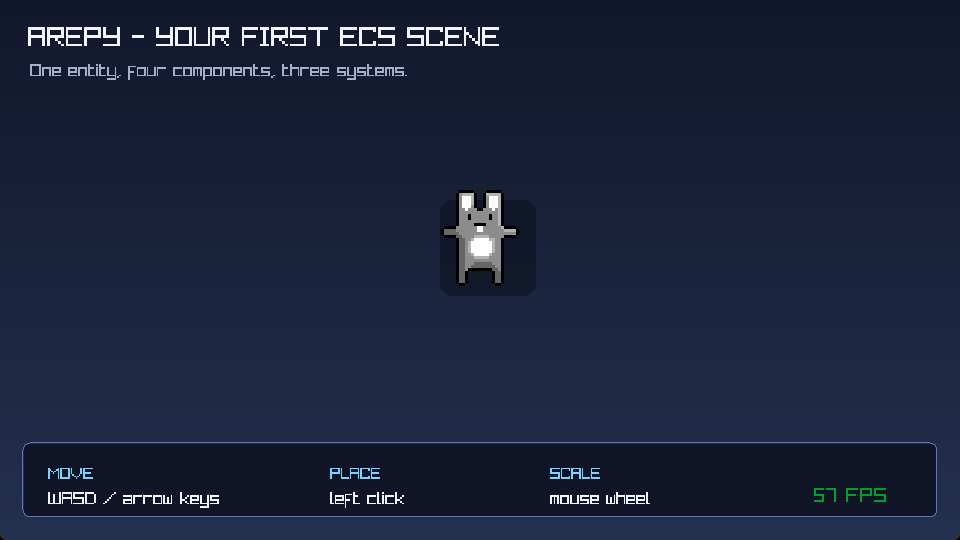
The finished example. Use WASD or the arrow keys, click to move the bunny, and use the mouse wheel to resize it.
The complete version shown in the screenshot also adds click-to-place, mouse
wheel scaling, a gradient, and the control panel. It lives in
examples/getting_started.py.
1. Create the engine and a world
Create main.py beside an assets folder containing bunny.png:
If you cloned Arepy, copy
examples/assets/bunny.png
into that folder. You may use your own 32×32 PNG instead; keep its filename and
source rectangle in the code consistent.

Start with the engine shell:
from arepy import ArepyEngine, SystemPipeline


engine = ArepyEngine(
    title="My first Arepy game",
    width=960,
    height=540,
    max_frame_rate=144,
)
world = engine.create_world("main")
Think of a World as a scene: a menu, a level, or a battle. It owns the
entities and systems that belong to that scene.
2. Describe the player with components
An entity is only an identity. Components give that identity data.
from arepy.bundle.components import RigidBody2D, Sprite, Transform
from arepy.ecs import Component
from arepy.math import Vec2


class Player(Component):
    def __init__(self, speed: float = 260.0) -> None:
        super().__init__()
        self.speed = speed


player = (
    world.create_entity()
    .with_component(Transform(position=Vec2(464.0, 254.0)))
    .with_component(RigidBody2D(velocity=Vec2(0.0, 0.0)))
    .with_component(Sprite("bunny", (0, 0, 32, 32), z_index=1))
    .with_component(Player())
    .build()
)
The entity is the player because it has a Player component. It can move
because it has a RigidBody2D, and it can be placed and drawn because it has
Transform and Sprite.
3. Read the keyboard
A system is a regular Python function. Its query says which entities it can work with, and its other typed arguments are services supplied by Arepy.
from arepy import Input, Key
from arepy.ecs import Entity, Query, With


def read_controls(
    query: Query[Entity, With[Player, RigidBody2D]],
    input_device: Input,
) -> None:
    for player, rigid_body in query.iter_components(Player, RigidBody2D):
        horizontal = float(
            input_device.is_key_down(Key.D)
            or input_device.is_key_down(Key.RIGHT)
        ) - float(
            input_device.is_key_down(Key.A)
            or input_device.is_key_down(Key.LEFT)
        )
        vertical = float(
            input_device.is_key_down(Key.S)
            or input_device.is_key_down(Key.DOWN)
        ) - float(
            input_device.is_key_down(Key.W)
            or input_device.is_key_down(Key.UP)
        )

        # Reuse the existing Vec2 instead of replacing it every frame.
        rigid_body.velocity.x = horizontal * player.speed
        rigid_body.velocity.y = vertical * player.speed
is_key_down() stays true while a key is held. That makes it the right choice
for continuous movement. Use is_key_pressed() for one-shot actions such as
opening a menu or firing once.
4. Move the matching entities
from arepy import Time


def move_player(
    query: Query[Entity, With[Transform, RigidBody2D]],
    time: Time,
) -> None:
    for transform, rigid_body in query.iter_components(
        Transform,
        RigidBody2D,
    ):
        transform.position.x += rigid_body.velocity.x * time.delta_seconds
        transform.position.y += rigid_body.velocity.y * time.delta_seconds

        transform.position.x = min(max(transform.position.x, 24.0), 904.0)
        transform.position.y = min(max(transform.position.y, 92.0), 484.0)
Multiplying by time.delta_seconds makes movement independent of frame rate.
The code mutates the existing vector coordinates, so it does not create a new
Vec2 for every entity on every frame.
5. Load once, draw every frame
Load the texture before the game loop:
from pathlib import Path

from arepy import Color, Rect, Renderer2D
from arepy.asset_store import AssetStore


assets = engine.get_asset_store()
renderer = engine.renderer_2d
texture_path = Path(__file__).parent / "assets" / "bunny.png"
assets.load_texture(renderer, "bunny", str(texture_path))


@world.on_shutdown
def unload_bunny() -> None:
    assets.unload_texture(renderer, "bunny")

BACKGROUND = Color(13, 18, 30, 255)
WHITE = Color(245, 247, 255, 255)
SOURCE = Rect(0.0, 0.0, 32, 32)
DESTINATION = Rect(0.0, 0.0, 64, 64)
The world now owns both the load and the matching unload. Reuse the loaded texture and rectangles in the render system:
def draw_scene(
    query: Query[Entity, With[Transform, Sprite]],
    renderer: Renderer2D,
    assets: AssetStore,
) -> None:
    renderer.start_frame()
    renderer.clear(BACKGROUND)
    renderer.draw_text("Move: WASD / arrows", (24, 24), 22, WHITE)

    texture = assets.get_texture("bunny")
    for transform, in query.iter_components(Transform):
        DESTINATION.x = transform.position.x
        DESTINATION.y = transform.position.y
        renderer.draw_texture_ex(
            texture,
            SOURCE,
            DESTINATION,
            (32.0, 32.0),
            transform.rotation,
            WHITE,
        )

    renderer.end_frame()
Keep setup out of the frame loop
Load textures, sounds, fonts, and models once. A render system should reuse those resources; it should not read the same file or rebuild an atlas for every entity on every frame.
6. Register the systems and run
world.add_system(SystemPipeline.INPUT, read_controls)
world.add_system(SystemPipeline.UPDATE, move_player)
world.add_system(SystemPipeline.RENDER, draw_scene)

engine.set_current_world("main")
engine.run()
Run it from your project directory:
You now have the basic Arepy loop:
flowchart LR
    Input["INPUT<br/>read controls"] --> Update["UPDATE<br/>move components"]
    Update --> Render["RENDER<br/>draw the world"]
    Render --> Frame["Present frame"]
    Frame --> Input
Where to go next
- Understand ECS without engine jargon.
- Add keyboard, mouse, or gamepad input.
- Learn 2D drawing, textures, and atlases.
- Open a live ImGui debug panel.
- Process large homogeneous groups with Query and BatchQuery.